
All updates
 Full guide ELCARO Forecast in the Terminal
Forecast November 6, 2026
See the turning dates on the chart
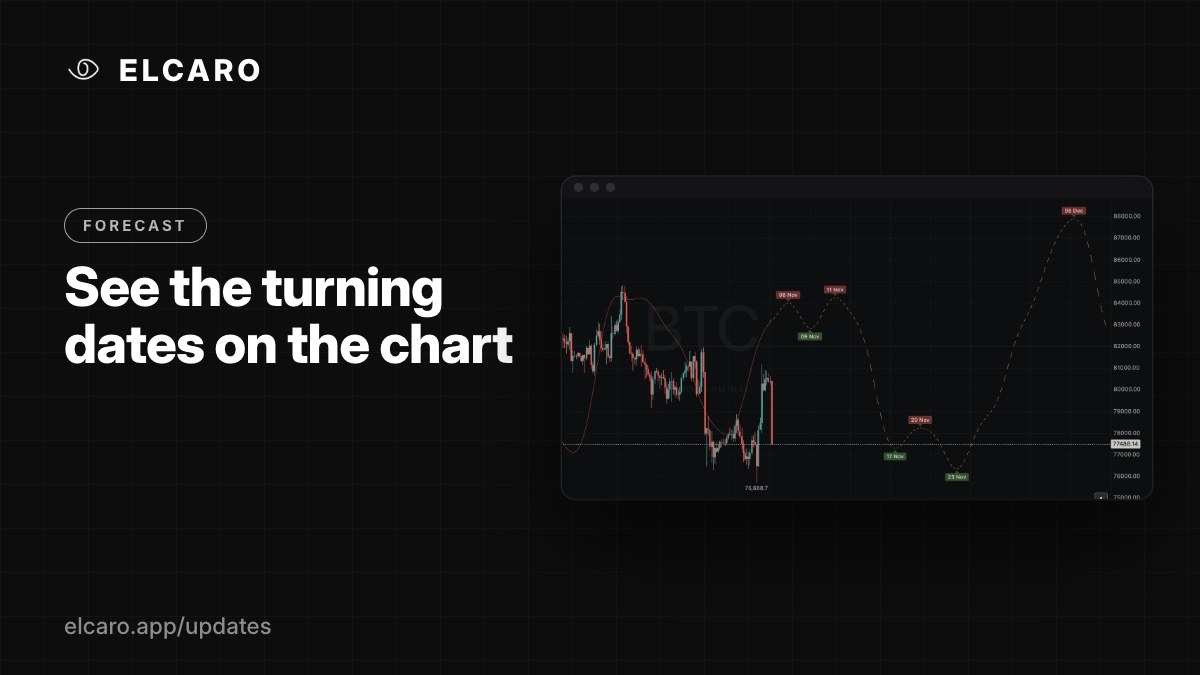
Switch on turn dates and every expected peak and trough of the forecast gets a date chip. Hover for the exact time.
What it gives you
The most useful part of the ELCARO forecast is when the next phase is expected to start. Turn dates put that date straight on the chart, at each peak and trough of the forecast line.
How to switch it on
- 1. Open Indicators → ELCARO FORECAST → Settings.
- 2. Turn on Turn dates.
- 3. Date chips appear at the turns of the forecast. Hover a chip to see the full date and time in your time zone.
How to use it
- Look at the next turn after the last candle: it tells you which phase is expected next and roughly when.
- Compare the dates of two timeframes, for example 4h and 1D, in a two-chart layout.
- Set an alert so you do not have to watch the date: Forecast turn approaching fires a set number of bars before the turn. That one gets its own post soon.
Good to know
Turn dates are off by default to keep the chart clean. The time zone comes from Settings → Symbol, so dates match the clock you work with.