
Brushes, arrows, shapes, text and icons
Freehand brushes, the four arrows, ten shapes, ten text and note tools and the icon palette: how to place each one and edit its text.
Free for every account. Every drawing tool works on any chart, on any asset and any timeframe, with no plan.
Two groups hold the tools for marking up a chart: Geometric shapes (brushes, arrows, shapes) and Annotation tools (text and notes). The Icons button opens a palette.
Brushes
- Brush: a thin freehand line. Press, draw and release. Use it to circle a spot quickly.
- Highlighter: a wide, see-through stroke drawn the same way. Use it to shade an area you want to come back to.
- A selected highlighter stroke has a frame: drag inside it to move the stroke, drag a corner or edge handle to resize it. A brush stroke shows no frame.
Arrows
- Arrow marker: a solid arrow with room for a label beyond its tail. Two clicks: the tail, then the tip. Use it to point at a bar with a word of explanation.
- Arrow: a line with an arrowhead. Two clicks: start and tip. Use it to show the direction of a move.
- Arrow mark up and Arrow mark down: a small arrow under or over a bar. One click. Use them to tag several bars quickly.
Shapes
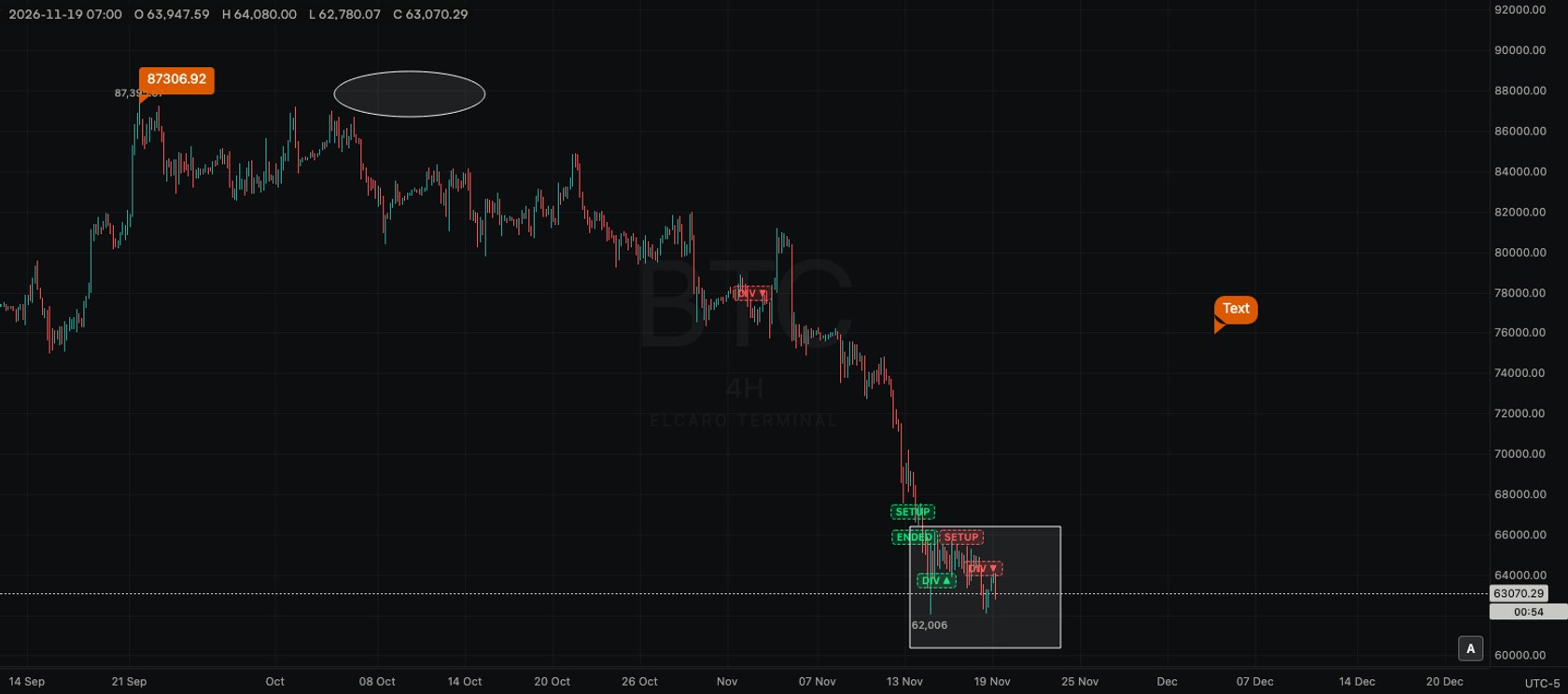
- Rectangle: two clicks on opposite corners. Box in a range. Select it to resize from any of its 4 corners or 4 edges, and to add a note: click + Add text in its centre, or double-click the rectangle. The note sits in the middle of the box.
- Rotated rectangle: three clicks: two for one side, the third for the width. Box in a sloped range.
- Path: a line through as many points as you like, with an arrowhead at the end. Finish with a double-click,
Enteror a right-click. Draw a route. - Circle: two clicks: the centre, then the edge. Ring a cluster of bars.
- Ellipse: two clicks on opposite corners; a handle above it rotates it. Outline a rounded area.
- Polyline: a line through as many points as you like. Finish like a path; end on the first point to close it into a shape. Outline an uneven area.
- Triangle: three clicks, one per corner.
- Arc: three clicks: the arc passes through all three points.
- Curve: three clicks: start, a point it bends through, end.
- Double curve: four clicks, for an S-shaped bend.
Text and notes
Text, Anchored text, Note, Pin, Callout, Comment and Signpost open an editor as soon as you place them. Type, then press Enter to save. Shift+Enter adds a line, Esc cancels. Double-click (or double-tap) a placed drawing to edit its text again; on a Price note, an Arrow marker or a rectangle this adds text.
- Text: one click. Plain text tied to a time and price, so it moves with the chart. An empty text removes itself.
- Anchored text: one click. Text that stays in the same place on screen while you scroll.
- Note: one click. A small badge; its text shows when you point at it or select it.
- Price note: two clicks: the price point, then the label. The label shows that price and any text you add.
- Pin: one click. A map pin; its text shows when you point at it or select it.
- Callout: two clicks: the point, then where the text box goes.
- Comment: one click. A speech bubble pointing at the spot.
- Price label: one click. A small bubble with the price at that point.
- Signpost: one click. A label on a pole down to the bar.
- Flag mark: one click. A small flag.
Lines carry text too: see Trend line tools.
Icons
- 1. Click the Icons button.
- 2. Choose the Emojis or Icons tab.
- 3. Pick a symbol, then click the chart once to place it.
Text and shapes take the colour you pick in the style bar. Every icon, text and shape can be locked, moved or deleted like any other drawing.
Read next
Drawing tools
How the drawing toolbar works: picking a tool, placing points, selecting and styling a drawing, the magnet, drawing mode, locking, hiding and removing, undo, saving and the phone.
Lines and line alerts
Trend line, ray, info line, extended line, trend angle, horizontal and vertical lines, cross line, and how to set an alert from a line you drew.
Keyboard shortcuts
Every drawing and chart hotkey in the Terminal, with the Mac key and its Windows equivalent, and how to open the list.