
Lines and line alerts
Trend line, ray, info line, extended line, trend angle, horizontal and vertical lines, cross line, and how to set an alert from a line you drew.
Free for every account. Every drawing tool works on any chart, on any asset and any timeframe, with no plan.
The Trend line tools group opens with nine lines. Pick one, then click the chart for each point. Five of them have hotkeys.
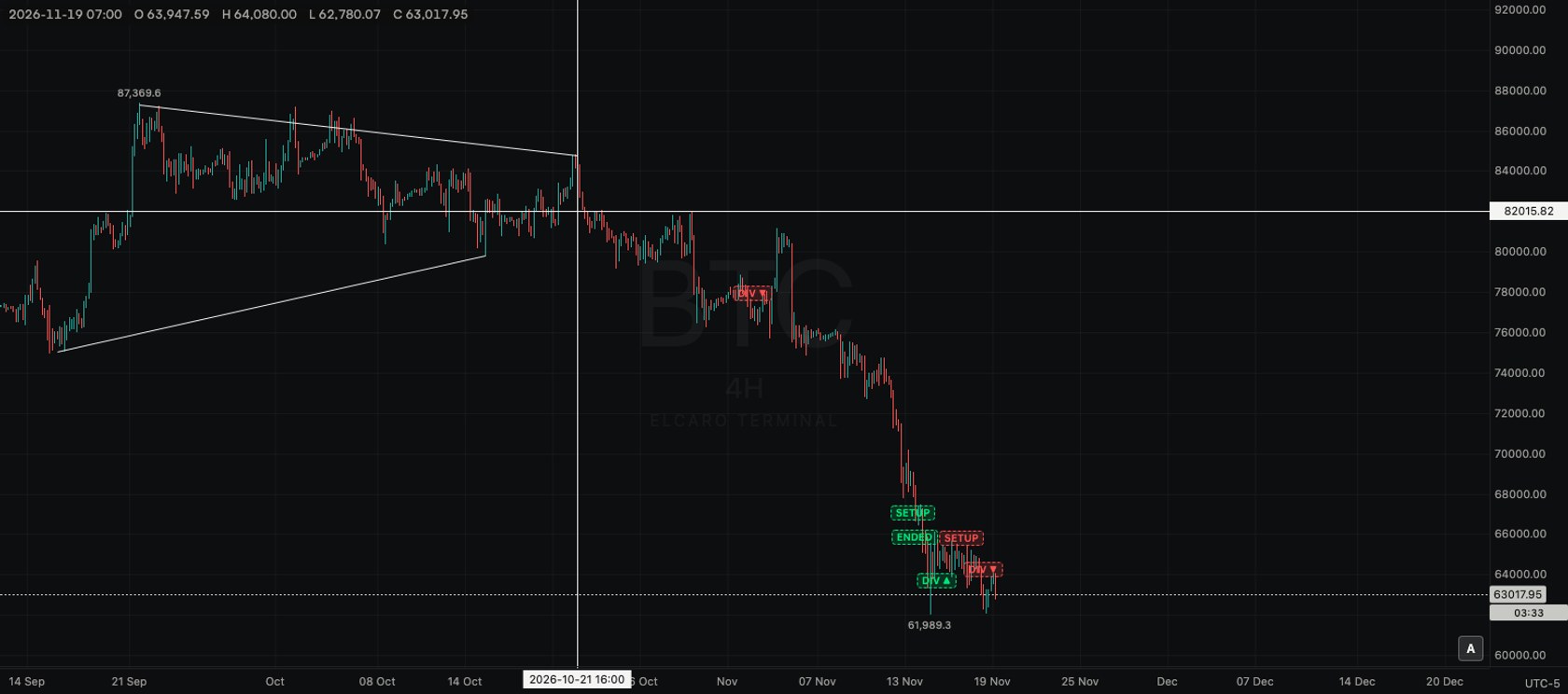
Trend line
- What it is: a straight segment between two points.
- Points: two clicks. Hotkey
⌥T(Mac) orAlt+T(Windows). - Typical use: join two swing lows to see the slope of a rise.
Ray
- What it is: a line that starts at the first point, passes through the second and runs on to the edge of the chart.
- Points: two clicks.
- Typical use: carry the slope of a move into the empty area right of the last candle.
Info line
- What it is: a segment with a box at its end. The box shows the price change, the change in percent and in ticks, the number of bars, the time span and the angle.
- Points: two clicks.
- Typical use: compare the size and length of two moves.
Extended line
- What it is: a line through two points that runs to both edges of the chart.
- Points: two clicks.
- Typical use: see where an old slope crosses today's candles.
Trend angle
- What it is: a segment with an arc and its angle in degrees against the horizontal. The angle is measured on screen, so it changes when you zoom.
- Points: two clicks.
- Typical use: compare how steep two rises look at the same zoom.
Horizontal line
- What it is: a line across the whole chart at one price.
- Points: one click. Hotkey
⌥HorAlt+H. - Typical use: mark a previous high or low.
Horizontal ray
- What it is: a level that starts at a point and runs in one direction only.
- Points: two clicks: the start, then the side it runs to. Hotkey
⌥JorAlt+J. - Typical use: mark a level from the bar where it first appeared onwards.
Vertical line
- What it is: a line through one moment in time. It also shows in the volume pane.
- Points: one click. Hotkey
⌥VorAlt+V. - Typical use: mark the date of a news event.
Cross line
- What it is: a horizontal and a vertical line through one point.
- Points: one click. Hotkey
⌥CorAlt+C. - Typical use: pin one bar's time and price together.
Text on a line
- Which lines: trend line, ray, extended line, horizontal line, horizontal ray and vertical line.
- How: double-click the line, type your note and press
Enter.Shift+Enteradds a line,Esccancels. Double-click the label again to edit it. - Where it sits: the label is centred on the line, in a small gap of the line itself, so the note reads clearly next to the level. On a vertical line it runs along the line, near the top.
- Typical use: name a level ("weekly high") or a date ("news") right where you drew it.
An alert from a line
- 1. Click a trend line, ray, extended line, horizontal line, horizontal ray or vertical line to select it.
- 2. In the style bar, click Alert. On a vertical line the button reads Alert at this time. You can also press
⌥AorAlt+A. - 3. The Terminal confirms: you get a Telegram message and an in-app notice when the alert fires.
What each line watches:
- Horizontal line or ray: the price crossing that level.
- Trend line, ray or extended line: the price crossing the line, which follows its slope. A trend line counts between its two points, a ray from its first point on, an extended line in both directions.
- Vertical line: that moment in time.
Each alert fires once. Info line, trend angle and cross line have no alert button; with one of them selected, the Terminal asks you to select a trend line, ray, horizontal or vertical line. Every account can create line alerts. You find them with your other alerts; see Alerts.
Read next
Drawing tools
How the drawing toolbar works: picking a tool, placing points, selecting and styling a drawing, the magnet, drawing mode, locking, hiding and removing, undo, saving and the phone.
Alerts in the Terminal
How to create every kind of alert step by step, what repeat, cooldown and expiry do, message templates, delivery to Telegram and the app, and the limits.
Channels and pitchforks
Parallel channel, regression trend, flat top/bottom, disjoint channel and the three pitchforks: what each draws, how many clicks it takes and a typical use.
Keyboard shortcuts
Every drawing and chart hotkey in the Terminal, with the Mac key and its Windows equivalent, and how to open the list.