
Alerts in the Terminal
How to create every kind of alert step by step, what repeat, cooldown and expiry do, message templates, delivery to Telegram and the app, and the limits.
Alerts run on ELCARO's servers. They keep working when the Terminal or your browser is closed. Alerts on chart events are checked when a bar closes.
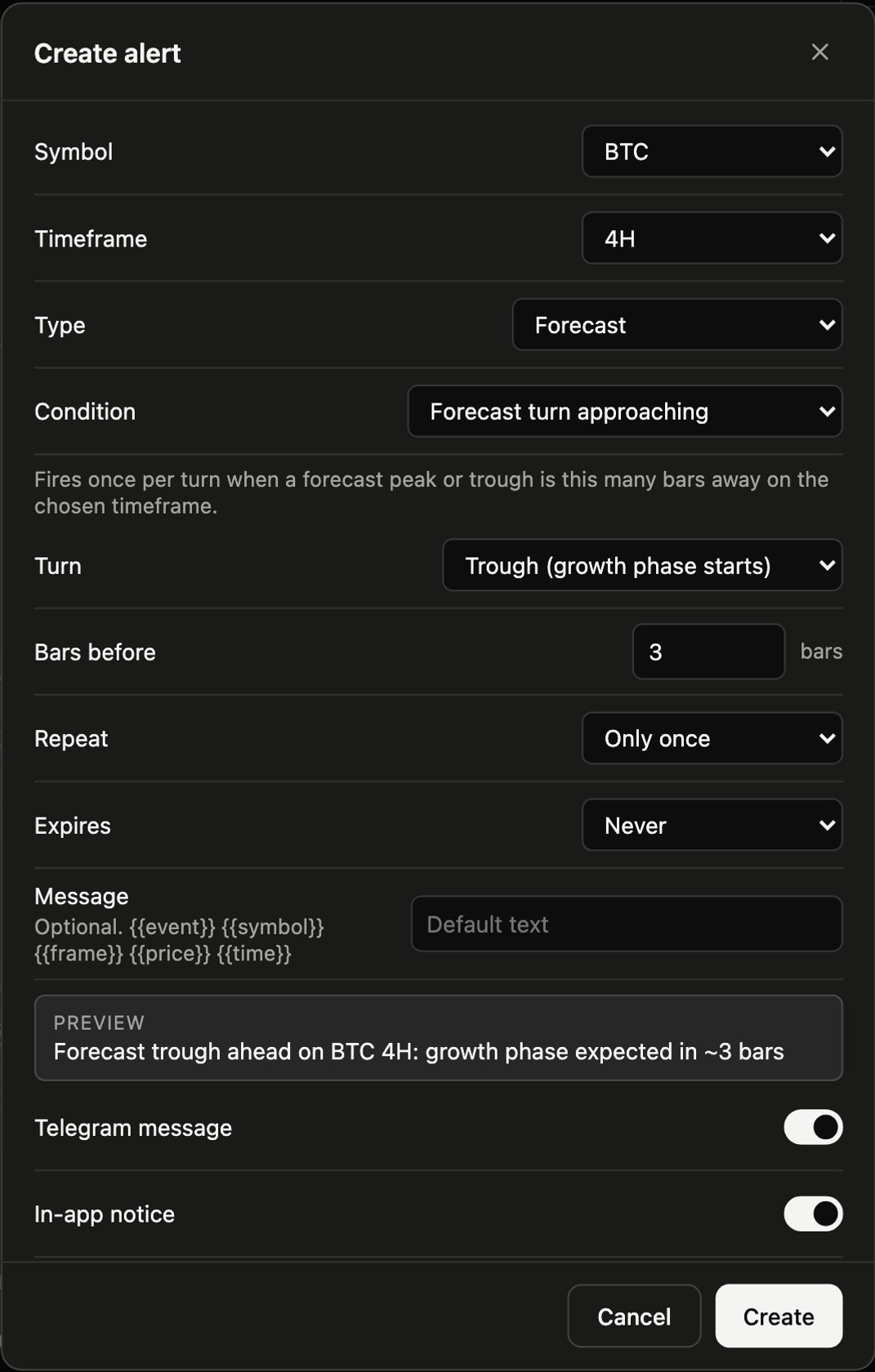
Four ways to start an alert
- From the right panel: ALERTS tab → Create alert.
- From the chart: right-click at a price → Add alert at that price (or press
Alt+A), or Create alert on the asset and timeframe. - From the trading filter pane: right-click it for ready filter and divergence alerts.
- From a drawing: select a line you drew → Alert in its style bar.
Create an alert, step by step
- Step 1. Check the Symbol and Timeframe at the top.
- Step 2. Choose the Type (group) and then the Condition.
- Step 3. Fill in the fields for that condition, such as the price, the turn or the line.
- Step 4. Choose Repeat, Cooldown and Expires.
- Step 5. Optionally write a Message.
- Step 6. Choose where it goes: Telegram message, In-app notice, or both.
- Step 7. Check the Preview and click Create.
Alert types open to every account
- Price: price crossing a level, crossing up through it, or crossing down through it.
- Time: at a date and time you choose. Fires once.
- Drawing: the price reaches a line you drew.
ELCARO alerts (within your plan)
- Forecast: turn approaching (1 to 30 bars before; any turn, peak or trough), turn reached, and the Forecast VOL turn.
- Divergence: appeared or activated; bullish or bearish; regular or hidden.
- TRAIL: flips phase; price crosses TRAIL.
- Filter (VOL): VOL crosses the centre line or a band; any line (VOL, bands, centre line, sigma levels, TRAIL) against a level.
Repeat, cooldown and expiry
- Repeat: Only once fires one time. Every time fires each time the condition is met.
- Cooldown: a pause after each firing so a choppy market does not flood you: none, 1 hour, 4 hours or 24 hours.
- Expires: never, or after 1, 7 or 30 days.
Your own message
Up to 200 characters. You can insert:
{{event}}what happened{{symbol}}the asset{{frame}}the timeframe{{price}}the price{{time}}the time
Where alerts arrive
- Telegram: from @ELCARO_bot, to the Telegram account linked to your ELCARO account.
- In the app: a notice. Tap it and the Terminal opens on that asset and timeframe.
- In the browser: Settings → Alerts adds a sound and browser notifications while the Terminal is open.
Manage your alerts
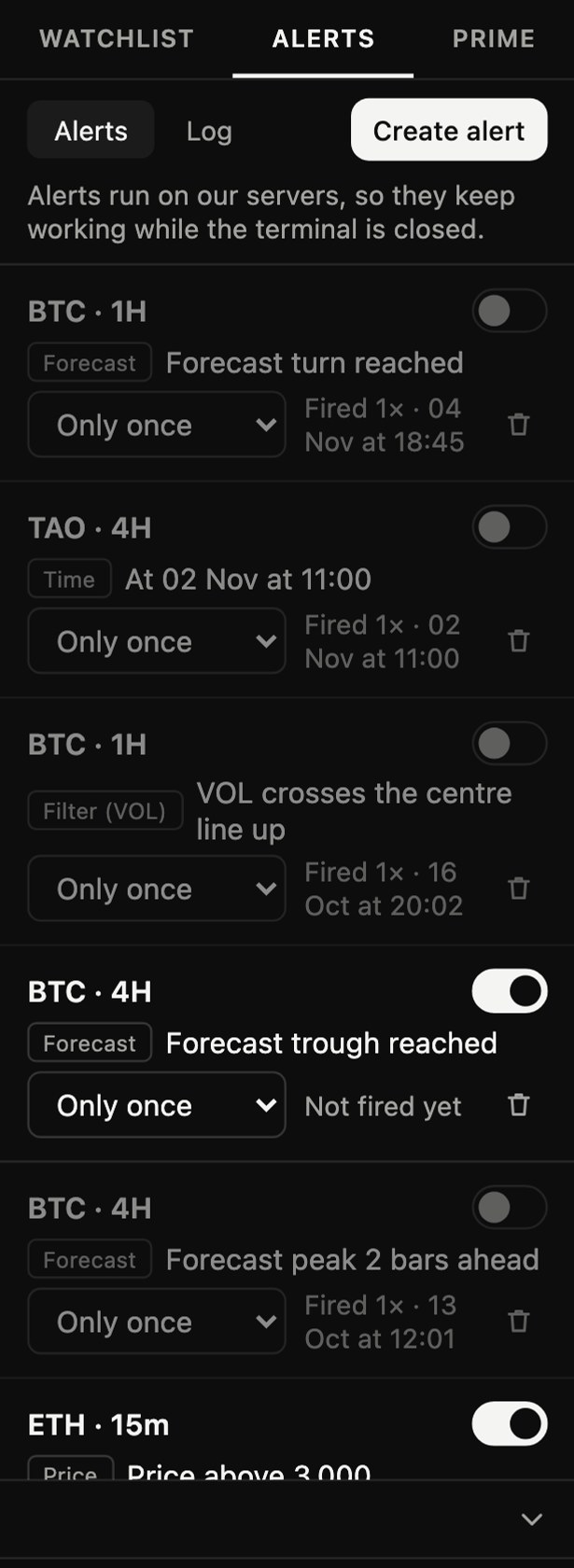
The ALERTS tab in the right panel lists all your alerts and their status.
Good to know
- Up to 100 active alerts and 300 in total.
- An alert does not fire for something that already happened before you created it.
- An alert made on a custom interval runs on the nearest built-in timeframe below it.
- If your plan no longer covers an ELCARO alert's chart, the alert is paused, not deleted.
In the news: elcaro alerts · alerts that keep working · guide workspace and alerts
Read next
ELCARO Forecast in the Terminal
How to switch the forecast on, read its solid and dashed parts, peaks and troughs, show turn dates, and set an alert before the next turn.
TRAIL and higher-timeframe trail levels
How TRAIL follows the trend, what a flip, a cross and the grey zone mean, how to show the 1H, 4H, 1D and 1W trail on one chart, and TRAIL alerts.
The trading filter and sigma levels
The trading filter pane step by step: VOL, the bands, the centre line, sigma levels, trend highlight, resizing the pane and alerts from a right-click.