
Keyboard shortcuts
Every drawing and chart hotkey in the Terminal, with the Mac key and its Windows equivalent, and how to open the list.
Free for every account. Every drawing tool works on any chart, on any asset and any timeframe, with no plan.
The Terminal has a compact set of hotkeys for drawing and for the chart. On a Mac they use ⌥ (Option) and ⌘ (Command). On Windows, ⌥ becomes Alt and ⌘ becomes Ctrl.
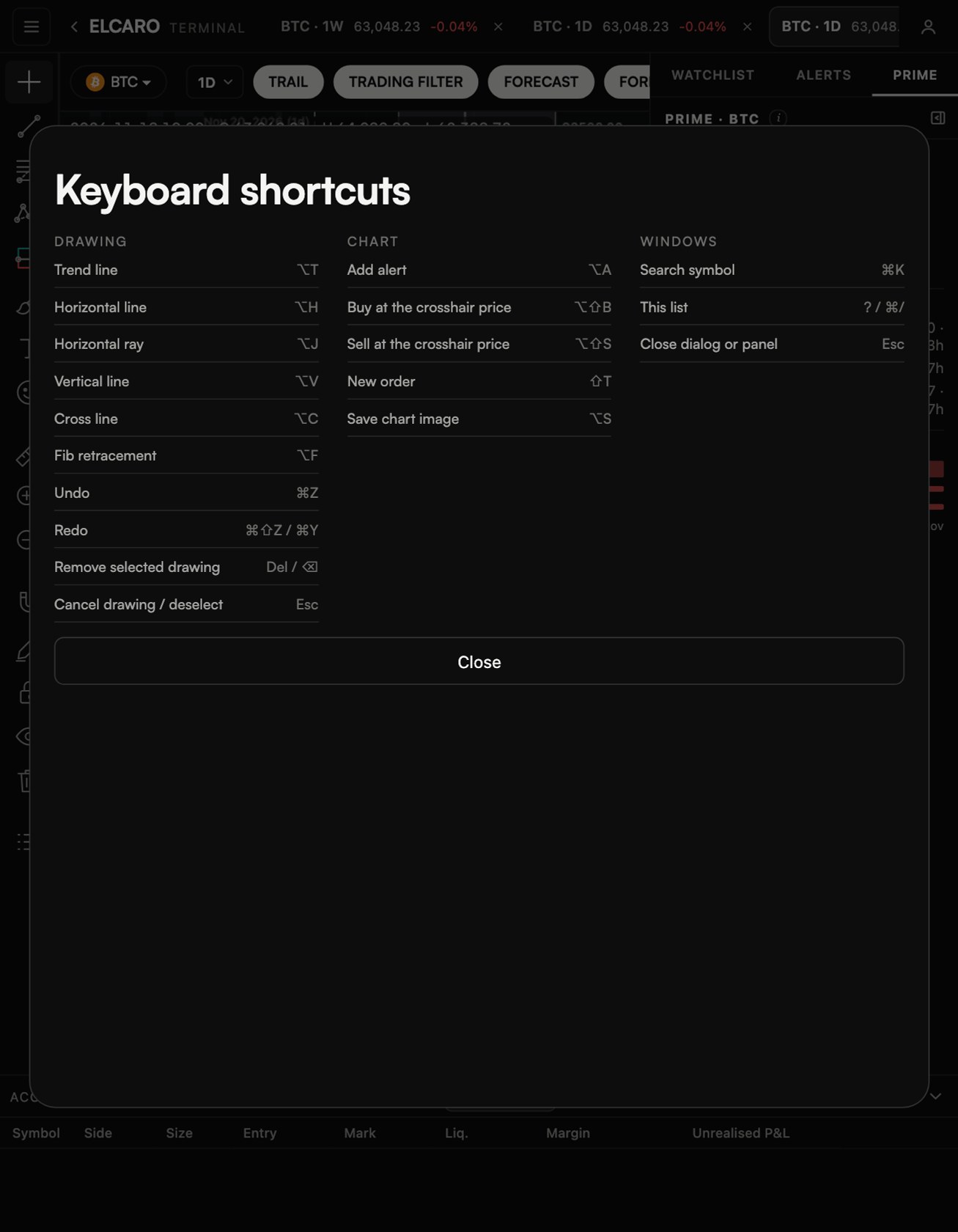
Open the list
- Press
?on the chart, or⌘/on a Mac (Ctrl+/on Windows). - Or open the account menu in the header and choose Keyboard shortcuts.
The window is called Keyboard shortcuts and shows the keys for your computer: Mac keys on a Mac, Windows keys elsewhere.
Drawing tools
- Trend line:
⌥Ton Mac,Alt+Ton Windows. - Horizontal line:
⌥Hon Mac,Alt+Hon Windows. - Horizontal ray:
⌥Jon Mac,Alt+Jon Windows. - Vertical line:
⌥Von Mac,Alt+Von Windows. - Cross line:
⌥Con Mac,Alt+Con Windows. - Fib retracement:
⌥Fon Mac,Alt+Fon Windows.
The tool lists in the toolbar show these keys next to the tool names. The keys work by their place on the keyboard, so ⌥ with a letter picks the tool even though Option types a special character on a Mac.
Editing drawings
- Undo:
⌘Zon Mac,Ctrl+Zon Windows. - Redo:
⌘⇧Zor⌘Yon Mac,Ctrl+Shift+ZorCtrl+Yon Windows. - Remove selected drawing:
Delor⌫on Mac,DelorBackspaceon Windows. - Cancel drawing / deselect:
Escon both. - Magnet off while you draw: hold
⌥or⌘on Mac,Alton Windows, while you place or drag a point. It also frees the corners and edges of a rectangle from the magnet.
Esc works step by step: first it cancels a drawing you are placing, then it clears a measurement, then it puts the picked tool down, and then it deselects the selected drawing. When there is nothing left to cancel, it brings back a pane or a chart you expanded.
Focus a pane
- Expand a pane: double-click the price chart, the trading filter or an indicator pane. Double-click again, or press
Esc, to go back. - Expand a whole chart in a layout of 2 to 4 charts:
Shift+ double-click on the chart. Repeat, or pressEsc, to go back.
Alerts and the chart
- Add alert:
⌥Aon Mac,Alt+Aon Windows. With a line selected, it creates an alert on that line. With nothing selected, it opens the alert window at the price under your pointer. - Save chart image:
⌥Son Mac,Alt+Son Windows. - Search symbol:
⌘Kon Mac,Ctrl+Kon Windows. - This list:
?or⌘/on Mac,?orCtrl+/on Windows.
When hotkeys do not react
- You are typing. While the cursor is in a text field, such as the text of a note or the symbol search, the chart ignores hotkeys so your typing is not interrupted.
- Several charts are open. Only the chart you clicked last listens to the keyboard. Click the chart you want first.
- A tool has no key. Only the six tools above have hotkeys. Pick the others on the toolbar; the group button keeps the last one you used, so it is one click away.
- On a phone or tablet without a keyboard, use the toolbar and the style bar instead.
In the news: guide keyboard shortcuts
Read next
Drawing tools
How the drawing toolbar works: picking a tool, placing points, selecting and styling a drawing, the magnet, drawing mode, locking, hiding and removing, undo, saving and the phone.
Lines and line alerts
Trend line, ray, info line, extended line, trend angle, horizontal and vertical lines, cross line, and how to set an alert from a line you drew.
Alerts in the Terminal
How to create every kind of alert step by step, what repeat, cooldown and expiry do, message templates, delivery to Telegram and the app, and the limits.